|
Important things to know about the QuickBooks Web Connector and syncing your data.
- AR Collect data will only match your latest QuickBooks desktop data when the web connector runs an update.
- Clicking Refresh Screen will refresh the data displayed on the AR Aging Summary page – it will not run an update on your web connector which is located on your desktop machine.
- The web connector can be set to auto run at a set amount of minutes or hours.
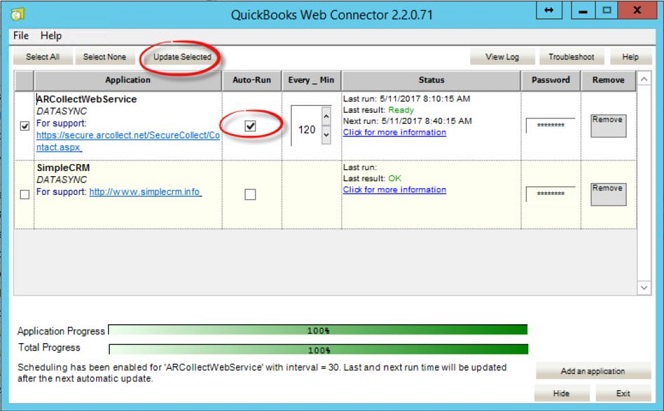
This means you do not need to navigate to the web connector and manually click on "Update Selected" in order to sync your data. (See screenshot 2 below).
- If you close the web connector your data will not sync, and AR Collect will be out of date
- If you minimize the web connector your data will sync: even if your QuickBooks company file is closed
- Closing your QuickBooks company file will not affect the web connector. It will still update your data correctly.
- If you notice that the data does not match – e.g. invoices that are paid in QuickBooks are still showing as unpaid in AR Collect, please click the "Reset Web Connector" button. Then open your web connector on your desktop PC/server and click on “Update Selected”. It will now run a complete sync, which will take longer than the usual incremental sync.
This will resolve the issue.
To open your web connector, go to the computer that you installed the AR Collect .qwc file and click on File | Update Web Services (see screenshot 1 below)
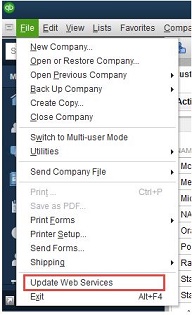 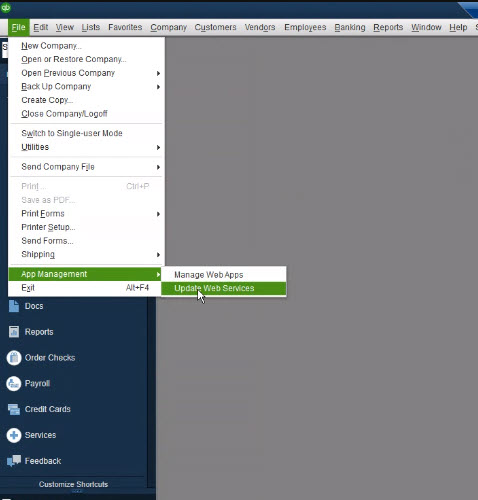
The web connector will open as per screenshot 2 below.
- To run a manual sync, click on "Update Selected"
- To run an auto sync, check the Auto Run box, and select the frequency.
- You may minimize this screen, but to not close it. (If required, you may close the QuickBooks company file, as this will not affect the sync process).
- Once the sync has run it will show “Last Result” OK.
|